
Cherry Mobile Omega 3 Hard Reset
1.Switch off or Turn off your Cherry Mobile phone.
2.Then, Press and Hold
3. 1.Volume Up + Power button (or)
2.Home button + Volume Up + Power button (or)
3.Volume Down + Power button (or)
4.Volume Up + Volume Down + Power button
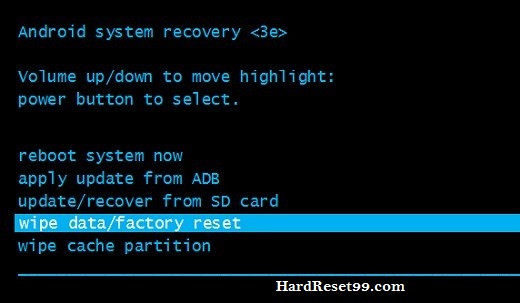
4.Please try above all steps one by one, Until you will see Android reboot menu.
5.Then, To go to the Recovery Mode menu hold down the Power key for a short while.
6.Next, select option : “wipe data / factory reset†using Volume Down, and Power button to confirm operation.
7.After that, choose option “yes†with Volume Down, to select and Power button to accept.
8.Finally, press Power button to enter option “ reboot system now â€.
9.Finally, Hard reset done on your mobile.
Password Recovery of Cherry Mobile Omega 3 With Android Tools
First, Download Android tools and drivers to your computer from below link.
.After that, install Drivers manually to your computer or PC.
.Software create a shortcut icon on your PC desktop.
.Click on that shortcut icon.
. If drivers will not create any shortcut, Open Android_Tool_Drivers / Android Multi tool / Android MultiTools v1.02b file from your downloaded file .
.Next, you see pop-up on your computer. Click on run option.
.Finally, you see the Android tools and drivers command prompt.
Do below steps on your android mobile :
.Press and Hold
1.Volume down button + Power button or
2. Volume up button + Power button or
3.Volume down + Volume up + Power button For a while.
.Please try above all steps one by one, Until you will see Android reboot menu.
. After you see Android boot mode on your smart phone.
. Now connect your android mobile to your computer via usb (Universal Serial Bus).
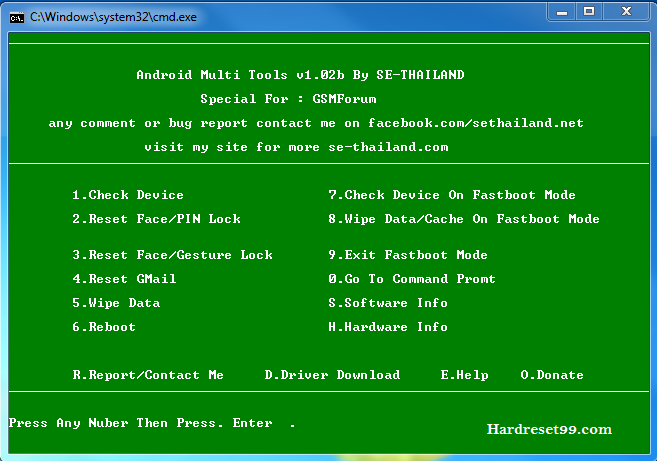
.Now you need to type any number to perform Hard reset or password recovery.
.Type 2 for reset face, type 4 for reset Gmail, type 5 for wipe data.
.No data will be delete if you choose 2, 3, 4 Options.
.Above options clearly explained below.
Option 2 : You can reset your face or PIN lock. No data will be deleted.
Option 4 : you can reset your gmail account. Means your old Mail deleted then new mail added to your mobile.
Option 5 : Wipe all your data on your mobile. Means all data will be deleted.
Option 8 : If you see fast boot mode on your mobile phone when you press volume buttons, You need to enter number 8 to wipe all your data.
.Type any number that you want then press enter.
.Reset done on your android mobile phone.
Android Mobile Cherry Mobile Omega 3 Reset Codes
NOTE : If codes don’t work on your android mobile phone, try to use only # in the start of the code and only # or only # at the end of the Android secret code. For example #7780# or *#7780#.
##7780##
This code can be used for a factory data reset. It will remove following things:
Google account settings stored in your mobile phone
System and application data and settings
Downloaded applications (Android Apps)
27673855#
Think before you give this code. This code is used for factory format. It’ll remove all files and settings including the internal memory storage. It’ll also reinstall the mobile phone firmware.
##4636##
This code can be used to get some interesting information about your Mobile phone and battery. It shows following 5 menus on screen:
Android Phone information
Battery information
Usage statistics
Battery history
Wifi information
