
- Joined
- Jul 24, 2014
- Messages
- 233
- Reaction score
- 2
- Points
- 1
For Error 21 :-
Well, error 21 is happening with users who are trying to jailbreak their iPhone 4, 3GS, iPod touch 4G, 3G or iPad using custom ipsw (per-jailbroken ipsw firmware) with PwnageTool or sn0wbreeze which are the only jailbreak tools that make custom ipsw.
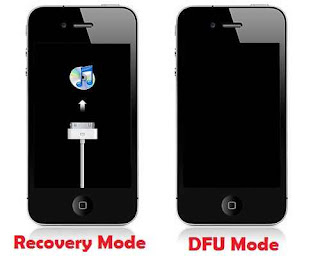
What does iTunes error 21 mean ?
When you found iTunes error 21, it means that you are attempting to restore custom ipsw in the recovery mode.
How to Fix iTunes error 21 ?
To fix iTunes error 21 on iPhone 4, 3GS, iPod Touch 4G, 3G or iPad you have to restore to custom ipsw when your device in the DFU mode (Device Firmware Upgrade).
Steps to put your device in DFU mode to Fix iTunes error 21:
Step 1: Connect your iPhone to your Mac/PC and press power button for few seconds. You will be asked to slide to power off. Slick it to power off your iPhone.
Step 2: Now Press and hold Home button and the Sleep/Wake button at the same time.

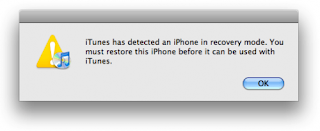
Step 3: After 10 seconds release the Sleep/Wake button but keep holding the home button until iTunes pops up with a message telling you that it has detected an iPhone in recovery mode.
Step 4: Once you are in DFU mode you won't see anything on you screen. It will be BLACK.
Now you have fixed iTunes error 21, go now and restore to custom ipsw firmware without errors

For Error 1603 :-
How to fix Error 1603 When you try to restore your iPhone in iTunes

How to Fix iTunes error 1603 :Step 1: Check for iTunes updates :
Windows: Choose Help ? Check for Updates.
Mac: Choose iTunes ? Check for Updates.
Step 2: Restart your Computer
Restart your computer may help to fix iTunes error 1603
Step 3: Try different USP Port
Try to connect your iPhone with computer via another USB port, then try to restore using iTunes.
Step 4: Restart Apple Mobile Device Service (Windows Only) :
Restoring Apple mobile device service on Windows XP or Windows Vista / 7 may help you to fix iTunes error 1603 while restoring your iPhone.
Windows XP
Close iTunes and disconnect iPhone.
Choose Start ? Control Panel.
Inside the Control Panel, openAdministrative Tools.
Open Services.
Select Apple Mobile Device and clickStop the service as shown below:

After the service is stopped, click Start the service.
After the Apple Mobile Device service has started again, open iTunes and connect iPhone.
Select iPhone in the Source list, click the Summary tab, and then click Restore.
Windows Vista
Close iTunes and disconnect iPhone.
Click the Windows Start button
In the Start Search field type “Services.â€
In the Programs section of the search results, Click “Servicesâ€.
Select Apple Mobile Device and click Stop the service as shown below:
After the service is stopped, click Start the service.
After the Apple Mobile Device service has started again, open iTunes and connect iPhone.
Select iPhone in the Source list, click the Summary tab, and then click Restore.
Step 5:
Reset the iPhone sync history and restore on Windows and Mac – How to do this ?
Windows
Open iTunes
On the Edit menu, click Preferences.
Click the iPhone tab.
Click the Reset Sync History button.
Mac
Open iSync.
Choose iSync ? Preferences.
Click the Reset Sync History button.
Step 6:
Create a new user account – How to do this ?
Windows Vista and Windows XP
From the Start menu, choose Control Panel.
Open User Accounts.
Select Create a new account and follow the instructions to complete the account setup process.
Once the new account is created, choose Log Off from the Start menu.
Log in to the newly created user account.
Mac OS X
Choose Apple menu? System Preferences.
Choose View ? Accounts.
Click the “+†(you may need to authenticate to be able to click this).
Give the new user a name and short name and enter a password.
Select the checkbox for “Allow user to administer this computerâ€. This makes the user an administrator user.
Click Create Account.
If the above Steps didn’t solve your iTunes error 1603 you have to download
iReb – Click Here :– Hotfile.com: One click file hosting: iREB-r4.zip
it will help you to bypass iTunes error 1603.
Well, error 21 is happening with users who are trying to jailbreak their iPhone 4, 3GS, iPod touch 4G, 3G or iPad using custom ipsw (per-jailbroken ipsw firmware) with PwnageTool or sn0wbreeze which are the only jailbreak tools that make custom ipsw.
What does iTunes error 21 mean ?
When you found iTunes error 21, it means that you are attempting to restore custom ipsw in the recovery mode.
How to Fix iTunes error 21 ?
To fix iTunes error 21 on iPhone 4, 3GS, iPod Touch 4G, 3G or iPad you have to restore to custom ipsw when your device in the DFU mode (Device Firmware Upgrade).
Steps to put your device in DFU mode to Fix iTunes error 21:
Step 1: Connect your iPhone to your Mac/PC and press power button for few seconds. You will be asked to slide to power off. Slick it to power off your iPhone.
Step 2: Now Press and hold Home button and the Sleep/Wake button at the same time.
Step 3: After 10 seconds release the Sleep/Wake button but keep holding the home button until iTunes pops up with a message telling you that it has detected an iPhone in recovery mode.
Step 4: Once you are in DFU mode you won't see anything on you screen. It will be BLACK.
Now you have fixed iTunes error 21, go now and restore to custom ipsw firmware without errors
For Error 1603 :-
How to fix Error 1603 When you try to restore your iPhone in iTunes
How to Fix iTunes error 1603 :Step 1: Check for iTunes updates :
Windows: Choose Help ? Check for Updates.
Mac: Choose iTunes ? Check for Updates.
Step 2: Restart your Computer
Restart your computer may help to fix iTunes error 1603
Step 3: Try different USP Port
Try to connect your iPhone with computer via another USB port, then try to restore using iTunes.
Step 4: Restart Apple Mobile Device Service (Windows Only) :
Restoring Apple mobile device service on Windows XP or Windows Vista / 7 may help you to fix iTunes error 1603 while restoring your iPhone.
Windows XP
Close iTunes and disconnect iPhone.
Choose Start ? Control Panel.
Inside the Control Panel, openAdministrative Tools.
Open Services.
Select Apple Mobile Device and clickStop the service as shown below:
After the service is stopped, click Start the service.
After the Apple Mobile Device service has started again, open iTunes and connect iPhone.
Select iPhone in the Source list, click the Summary tab, and then click Restore.
Windows Vista
Close iTunes and disconnect iPhone.
Click the Windows Start button
In the Start Search field type “Services.â€
In the Programs section of the search results, Click “Servicesâ€.
Select Apple Mobile Device and click Stop the service as shown below:
After the service is stopped, click Start the service.
After the Apple Mobile Device service has started again, open iTunes and connect iPhone.
Select iPhone in the Source list, click the Summary tab, and then click Restore.
Step 5:
Reset the iPhone sync history and restore on Windows and Mac – How to do this ?
Windows
Open iTunes
On the Edit menu, click Preferences.
Click the iPhone tab.
Click the Reset Sync History button.
Mac
Open iSync.
Choose iSync ? Preferences.
Click the Reset Sync History button.
Step 6:
Create a new user account – How to do this ?
Windows Vista and Windows XP
From the Start menu, choose Control Panel.
Open User Accounts.
Select Create a new account and follow the instructions to complete the account setup process.
Once the new account is created, choose Log Off from the Start menu.
Log in to the newly created user account.
Mac OS X
Choose Apple menu? System Preferences.
Choose View ? Accounts.
Click the “+†(you may need to authenticate to be able to click this).
Give the new user a name and short name and enter a password.
Select the checkbox for “Allow user to administer this computerâ€. This makes the user an administrator user.
Click Create Account.
If the above Steps didn’t solve your iTunes error 1603 you have to download
iReb – Click Here :– Hotfile.com: One click file hosting: iREB-r4.zip
it will help you to bypass iTunes error 1603.