How to reinstall OS X
How to install OS X again on the same Mac.
If you're selling or giving away your Mac
Begin by completing the other steps to prepare for selling or giving away your Mac. Then take these additional steps to reinstall OS X in a way that cleans your Mac of anything associated with you, your data, or your Apple ID.
How to install OS X again on the same Mac.
If you're selling or giving away your Mac
Begin by completing the other steps to prepare for selling or giving away your Mac. Then take these additional steps to reinstall OS X in a way that cleans your Mac of anything associated with you, your data, or your Apple ID.
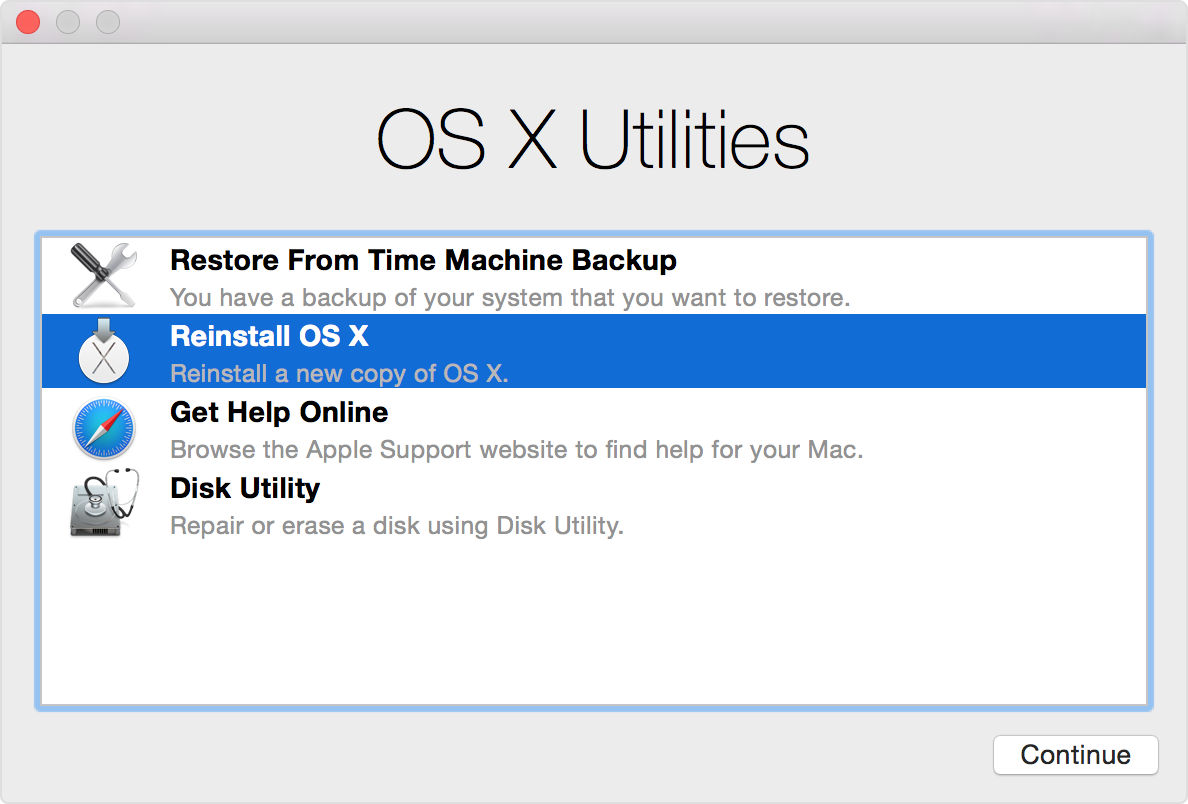
- Start up from OS X Internet Recovery by holding down Option-Command-R immediately after turning on or restarting your Mac. Release the keys when you see the Apple logo. Startup is complete when you see the OS X Utilities window.
- Open Disk Utility from the OS X Utilities window, then use Disk Utility to erase your built-in hard disk using the OS X Extended (Journaled) format. Quit Disk Utility when done.
- Choose Reinstall OS X from the OS X Utilities window, then follow the onscreen instructions.
This installs the OS X that came with your Mac when it was new. This version isn't associated with your Apple ID. The new owner can then use the Mac App Store to upgrade OS X with their Apple ID.
- When done, your Mac restarts to a setup assistant. Press Command (⌘)-Q, then click Shut Down. That way the new owner can complete the steps of the setup assistant using their own information.