
How to unsign system-sign.img, recovery-sign.img and boot-sign.img using FBWINTOOLS
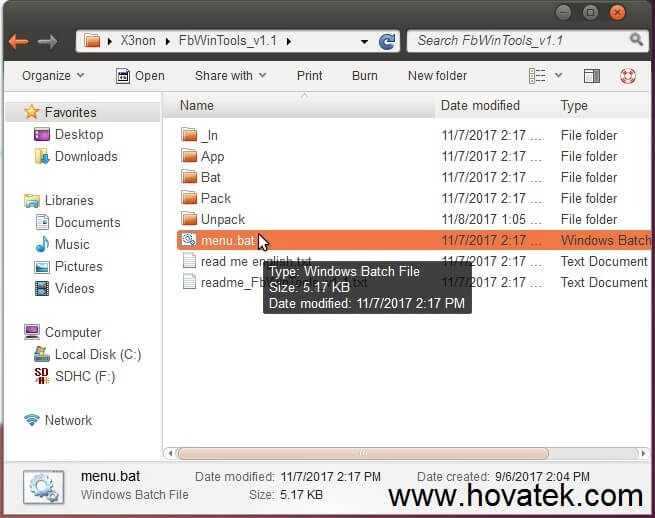
1. Extract the content on the zip file and launch menu.bat file
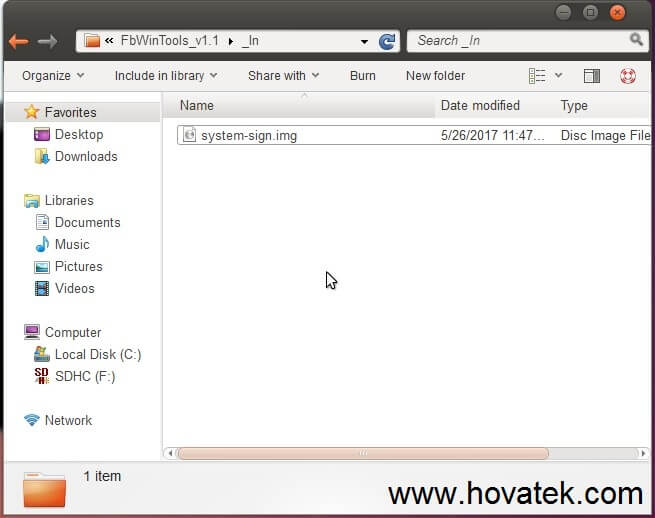
2. Copy the signed image you wish to extract into the _In folder. In this example, i'm using system-sign.img
3. The menu.bat file you launched earlier should open a CMD prompt window
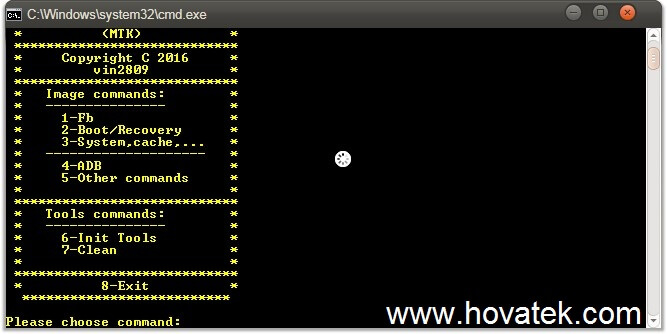
4. Type 1 and hit Enter to proceed
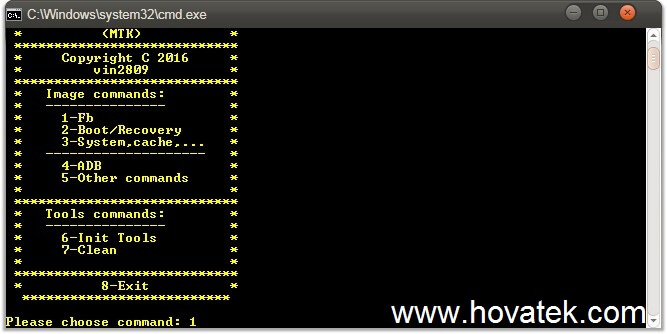
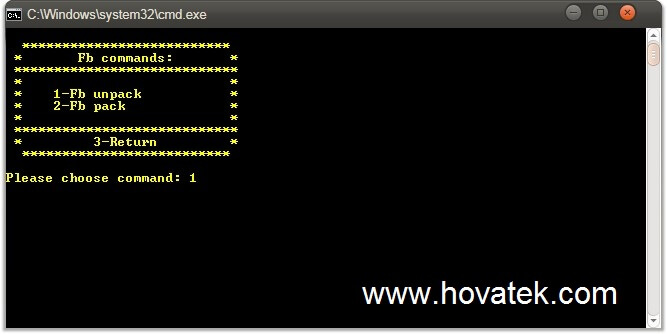
5. We are trying to unpack FB so type 1 again and hit Enter to proceed
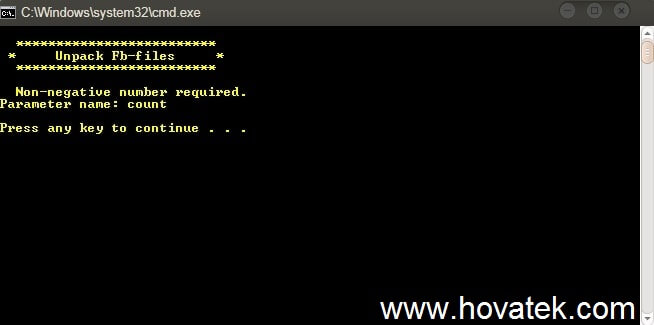
6. Waiting patiently while the tool unpacks the signed img and once its done, you should get a message as seen in the screenshot below. Unpacking the -sign img is complete and you can find the new file within the unpack folder. Press any key to proceed
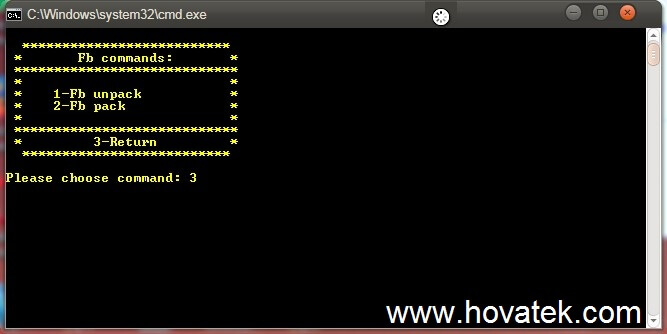
7. Now type 3 and hit Enter to return to the main menu
At this point, you'll get an unsigned image file in the unpack folder. You can unpack / extract the unsigned image using any of your favorite tools
Link: http://www.antgsm.com/showthread.php?t=253214
Credits: Vin2809 for Fbwintool
1. Extract the content on the zip file and launch menu.bat file
2. Copy the signed image you wish to extract into the _In folder. In this example, i'm using system-sign.img
3. The menu.bat file you launched earlier should open a CMD prompt window
4. Type 1 and hit Enter to proceed
5. We are trying to unpack FB so type 1 again and hit Enter to proceed
6. Waiting patiently while the tool unpacks the signed img and once its done, you should get a message as seen in the screenshot below. Unpacking the -sign img is complete and you can find the new file within the unpack folder. Press any key to proceed
7. Now type 3 and hit Enter to return to the main menu
At this point, you'll get an unsigned image file in the unpack folder. You can unpack / extract the unsigned image using any of your favorite tools
Link: http://www.antgsm.com/showthread.php?t=253214
Credits: Vin2809 for Fbwintool