- Joined
- Oct 9, 2014
- Messages
- 192
- Reaction score
- 1
- Points
- 1
INSTALLING CLOCKWORKMOD (CWM) RECOVERY ON CLONE MEDIATEK NOTE 2
Before starting..
1. Make sure you have the drivers installed.. There should be 3 installations (Mass storage, ADB & Preloader). This whole process depends on it!!
The two driver installations that worked for me are
1. MTK USB VCOM DRIVER (RAR FILE)
2. PDAnet DRIVERS (EXE)
Install either one. if you have earlier tried to install drivers and failed or you are not sure about them, then just head over to: USB DEVIEW app. This is an amazing app which will show the current installed USB drivers on your computer.. You can remove all MEDIATEK/SAMSUNG/PRELOADER/ADB drivers and close it. Realy simple and brilliant app!
Tip: after installing the USB drivers, connect your phone to computer.. it will also show the windows pop up message to install new drivers.. just click yes, yes, and yes.. Once done, restart comp.
NOW for the Geeky part.
You will need below softwares on your windows to start with this process.
1. SP FLASH TOOL V 3.1224
2. MTKDroid Tools V2.4.8
First- Download the MTK droit Tools and and click open. Extract to a place of your choice on your comp. Then download SP flash tool and extract it also to anywhere you prefer on your comp.
STEP 1
>>Enable USB DEBUGGING on your devise.
>>Connect to computer via USB cable
>>Open MTK DROID root tools.exe and it will show your device settings

STEP 2
>> Click on "Blocks Map" which should show something like below;

STEP 3
>> Click "Create Scatter File" and save it. Do not change name or anything. By default, the MTK droid Tools will go to save inside the extracted MTKdroid folder. Thats fine.
STEP 4
>>Open SP flasher
>> Click "scatter-loading" and select the scatter file you saved in step 3


STEP 5
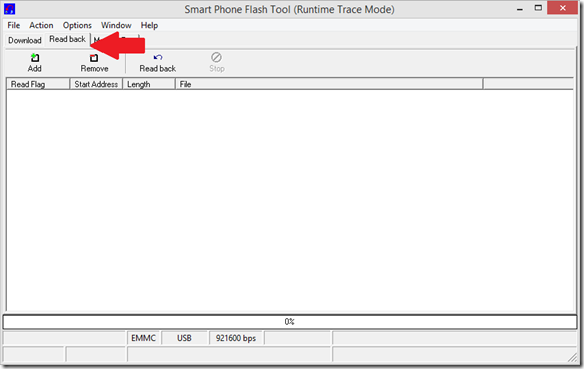
>> click "Read Back" tab on SP Flasher
STEP 6
>>click "Add" button

A new entry will appear (see below)

STEP 7
>>Double Click "N/A" entry
This will save the your current ROM file. Choose a location to save...
TIP: "ROM_" should be in start of the name.. Eg: ROM_myrom"


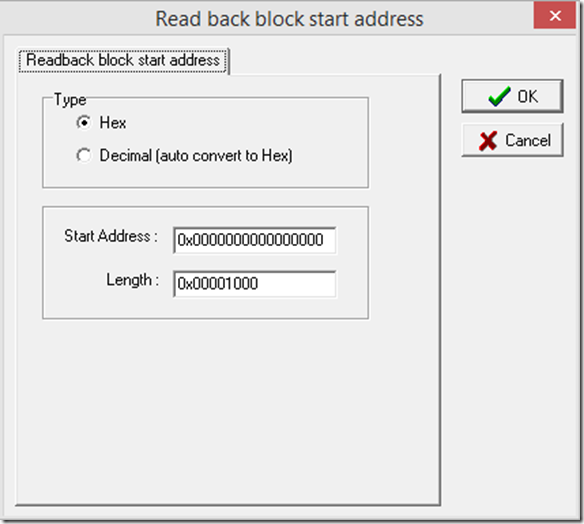
After you click save, below box will open. choose"Hex" as below..and keep the window open
STEP 8
>> Open the Scatter file you created in STEP 3. You can use any text editor. Search for the term "CACHE" in the document; which will have a numbering to it like 0x227e800. Copy this number from your scatter file

PASTE the number into the window for "Length" entry and click OK.

STEP 9 (BE SERIOUS NOW!!)
>> Disconnect your devise from the computer
>> Switch the device off.
>> Click "Read Back" on the SP flasher window (see below)
>> Quickly connect the switched off device to computer via USB cable NOW!

TIP: This will start reading your ROM and might take some time. So be patient. When process is complete, remove your phone from the computer and turn it on with USB debugging enabled. All the while, keep SP Flasher Window open as it was (DO NOT CLOSE).
STEP 10
>> Open MTK Droid Root & tools app and choose "root, Backup, recovery" TAB as below

>> Click on "To process file ROM_from flash tool" button and it will open your directory..
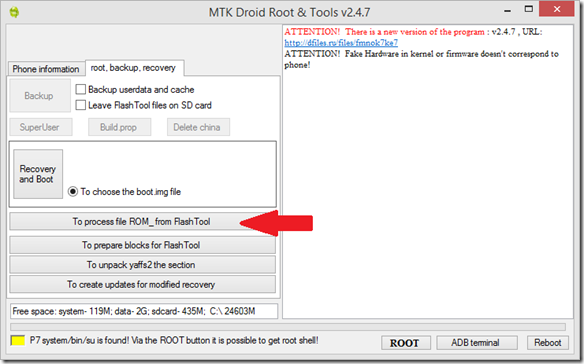
>> Choose the "ROM_......" file you saved in STEP 7 >> Click open.


You will see messages popping up in the right side pannel of MTK Droid Root & tools app. The process will take around 5 minutes to finish. Wait until finish. Keep as it is.
IMPORTANT: This will save the "Scatter-Loading" & Custom recovery File you will need in STEP 12 & 14 It will be in Droid Root & Tools folder/Backup.

STEP 11
>> GO back to SP Flasher window
>> Click "Download" TAB

STEP 12
>> Click "Scatter-Loading" and select the Scatter file created by MTK Droid Root & Tools in Step 10. (should be in Droid Root & Tools/Backup folder) Do not use the scatter file made in Step 1

STEP 13
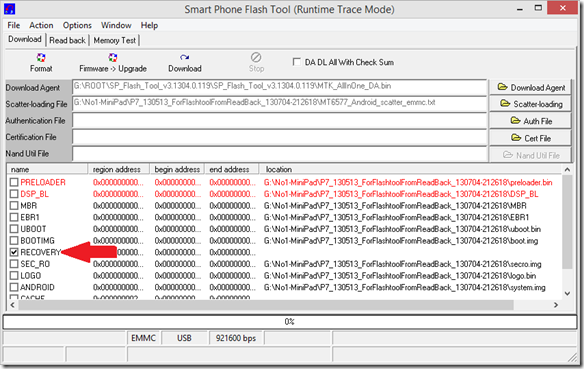
>> Deselect ALL checkboxes, except for the RECOVERY one, double click the RECOVERY entry
STEP 14
>> Select the recovery image
>> Click "open".
Note: This is the file saved from Step 10.
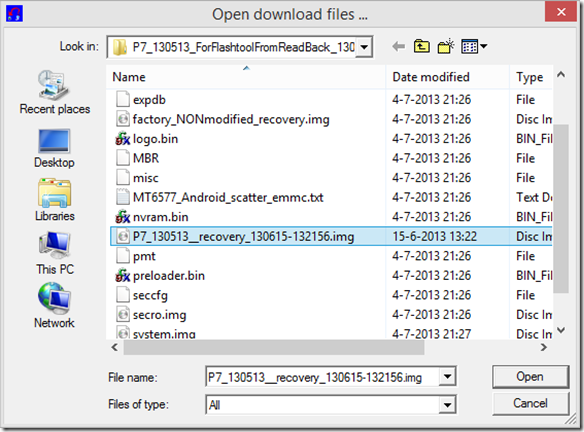
Now everything is set up for flashing...
STEP 15
>> Disconnect devise from Computer
>> Switch off device
>> Click on "Download" TAB in SP flasher. (this will start searching for device to flash)
>> Connect your devise switched off!
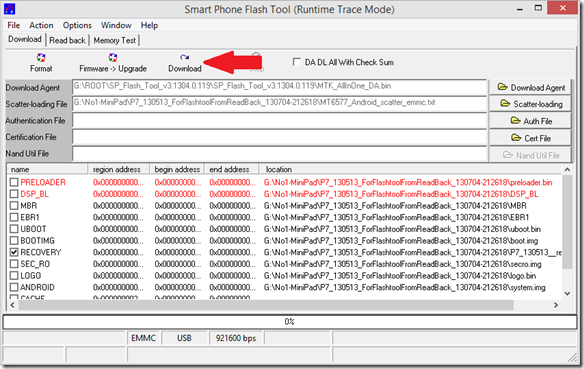
Warning like below will be seen. But you are flashing only the recovery... (good thing is you also got a back up of your rom!!)

THANKS TO ORIGINAL: http://maxed4901note2.blogspot.com/2013/09/installing-clockworkmod-cwm-recovery-on.html
