
Lenovo A600E
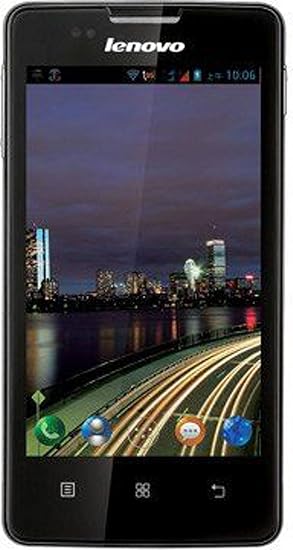
firmware here click our home
antgsm.com
password protected
use triangle for pass
info
Lenovo A600E s313 20130428
How to Flash
Copy the update.zip file the phone sd and flash it through the recovery mode.
firmware here click our home
antgsm.com
password protected
use triangle for pass
info
Lenovo A600E s313 20130428
How to Flash
Copy the update.zip file the phone sd and flash it through the recovery mode.
Caution: Your personal data will be deleted after flashing the stock firmware through Lenovo Downloader, So take a backup of everything before following the tutorial below.
How to Flash Lenovo A600E Useing Lenovo Downloader Tool
Step 1: download and install Qualcomm Driver on your Windows Computer (if you have already installed the correct drivers then SKIP this step).

Step 2: download and extract Lenovo Downloader Tool Qualcomm Chipsets 2017 on your Computer. After extracting, you will be able to see the following files.
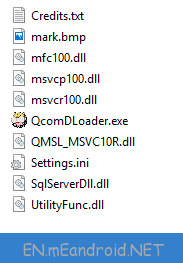
Step 3: Now, Open QcomDLoader.exe. Once it is launched you will be able to see the following screen.
Step 2: download and extract Lenovo Downloader Tool Qualcomm Chipsets 2017 on your Computer. After extracting, you will be able to see the following files.
Step 3: Now, Open QcomDLoader.exe. Once it is launched you will be able to see the following screen.
<figure id="attachment_2498" style="width: 773px" class="wp-caption alignnone">
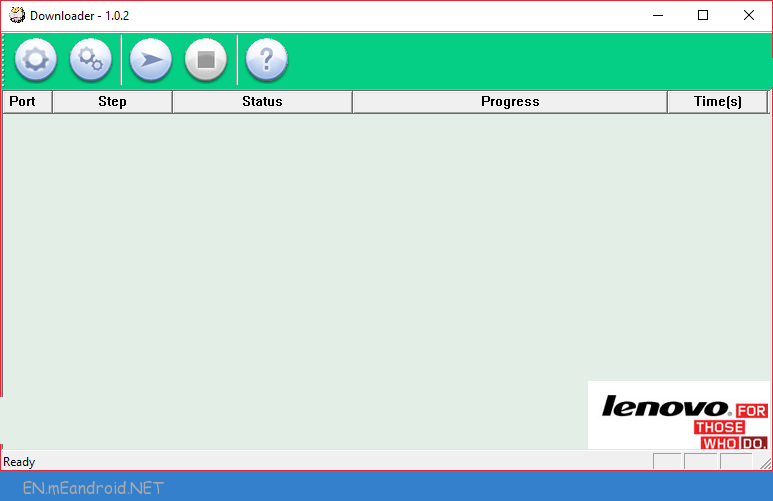 <figcaption class="wp-caption-text">How to Download and Flash Lenovo A600E Stock Rom (flash file)</figcaption></figure>
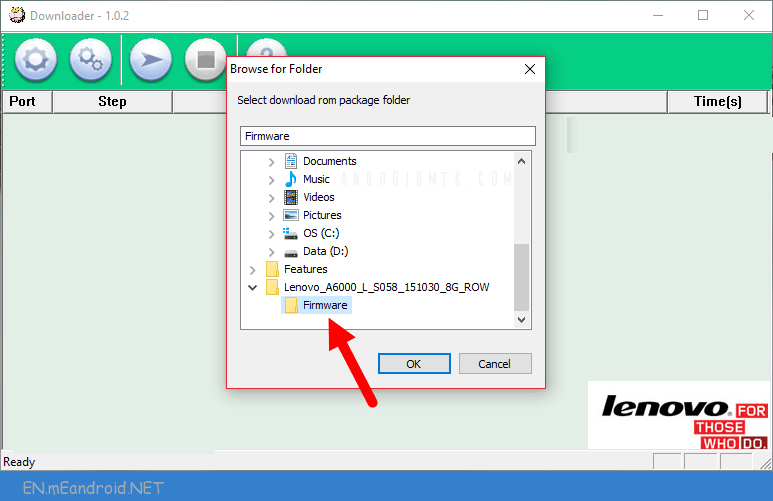
Step 4: Now, Click on Load Button and Select the Firmware Folder (that you have downloaded) that you wanted to flash on your Device:
Step 4: Now, Click on Load Button and Select the Firmware Folder (that you have downloaded) that you wanted to flash on your Device:
<figure id="attachment_2492" style="width: 773px" class="wp-caption aligncenter">
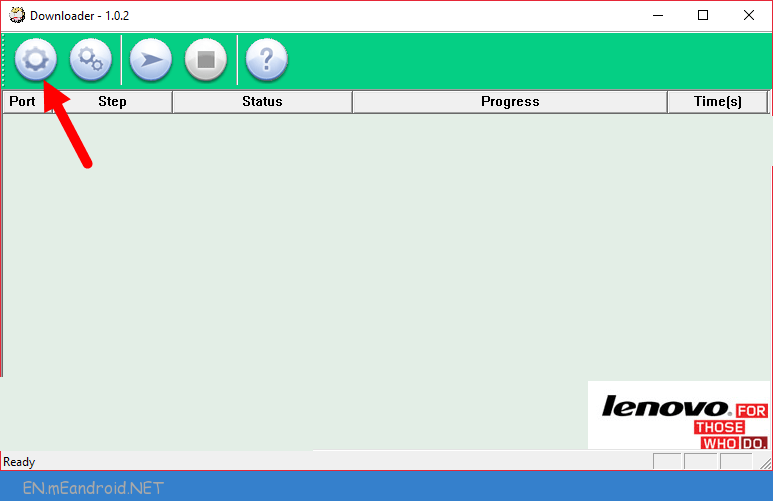 <figcaption class="wp-caption-text">How to Download and Flash Lenovo A600E Stock Rom (flash file)</figcaption></figure><figure id="attachment_2493" style="width: 773px" class="wp-caption aligncenter">
 <figcaption class="wp-caption-text">How to Download and Flash Lenovo A600E Stock Rom (flash file)</figcaption></figure>
<figcaption class="wp-caption-text">How to Download and Flash Lenovo A600E Stock Rom (flash file)</figcaption></figure>Step 5: Now, Click on Start Button:
<figure id="attachment_2499" style="width: 773px" class="wp-caption aligncenter">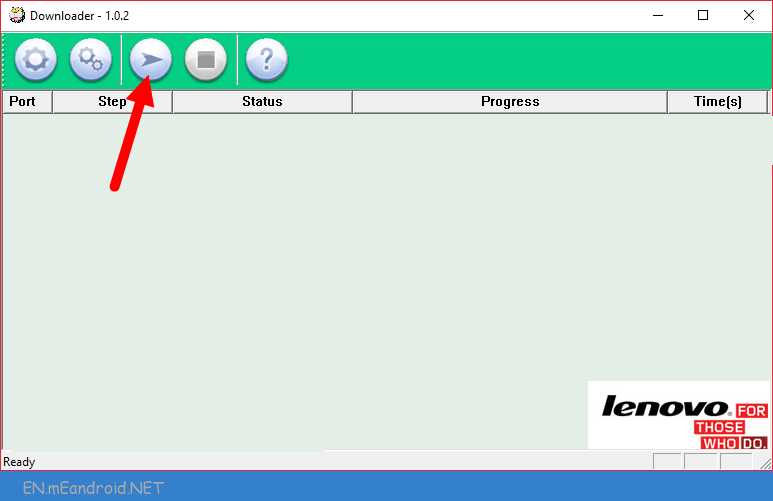 <figcaption class="wp-caption-text">How to Download and Flash Lenovo A600E Stock Rom (flash file)</figcaption></figure>
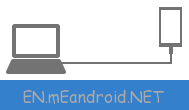
Step 6: Now, Turn Off the Lenovo A600E Device with Uncheck Fastboot and Press Volume UP or Volume Down Button and Connect Lenovo A600E Device to the Computer using the USB Cable.
<ins class="adsbygoogle" style="display: block; height: 75px;" data-ad-client="ca-pub-9124225755676563" data-ad-slot="4054713133" data-ad-format="auto" data-adsbygoogle-status="done"><ins id="aswift_3_expand" style="display: inline-table; border: medium none; height: 75px; margin: 0px; padding: 0px; position: relative; visibility: visible; width: 696px; background-color: transparent;"><ins id="aswift_3_anchor" style="display: block; border: medium none; height: 75px; margin: 0px; padding: 0px; position: relative; visibility: visible; width: 696px; background-color: transparent; overflow: hidden;"></ins></ins></ins>
Step 7: Once your Lenovo A600E device is detected by the computer, Lenovo Downloader Tool will automatically start the flashing process on your Lenovo A600E device.
<figcaption class="wp-caption-text">How to Download and Flash Lenovo A600E Stock Rom (flash file)</figcaption></figure>Step 6: Now, Turn Off the Lenovo A600E Device with Uncheck Fastboot and Press Volume UP or Volume Down Button and Connect Lenovo A600E Device to the Computer using the USB Cable.
<ins class="adsbygoogle" style="display: block; height: 75px;" data-ad-client="ca-pub-9124225755676563" data-ad-slot="4054713133" data-ad-format="auto" data-adsbygoogle-status="done"><ins id="aswift_3_expand" style="display: inline-table; border: medium none; height: 75px; margin: 0px; padding: 0px; position: relative; visibility: visible; width: 696px; background-color: transparent;"><ins id="aswift_3_anchor" style="display: block; border: medium none; height: 75px; margin: 0px; padding: 0px; position: relative; visibility: visible; width: 696px; background-color: transparent; overflow: hidden;"></ins></ins></ins>
Step 7: Once your Lenovo A600E device is detected by the computer, Lenovo Downloader Tool will automatically start the flashing process on your Lenovo A600E device.
<figure id="attachment_2495" style="width: 773px" class="wp-caption aligncenter">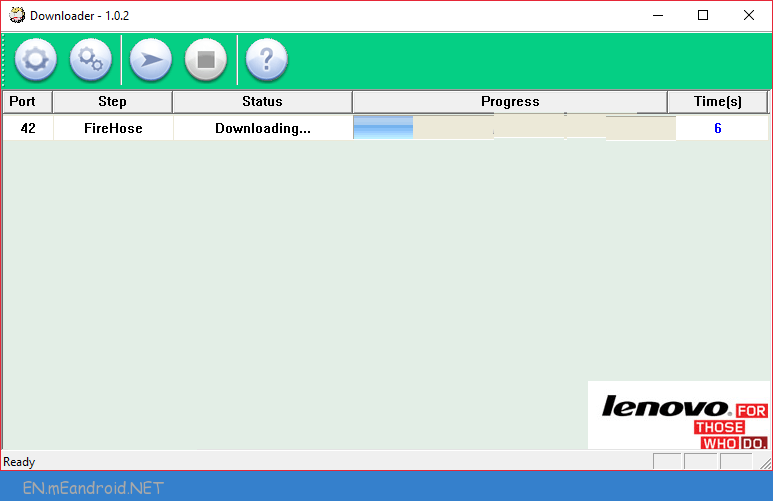 <figcaption class="wp-caption-text">How to Download and Flash Lenovo A600E Stock Rom (flash file)</figcaption></figure>
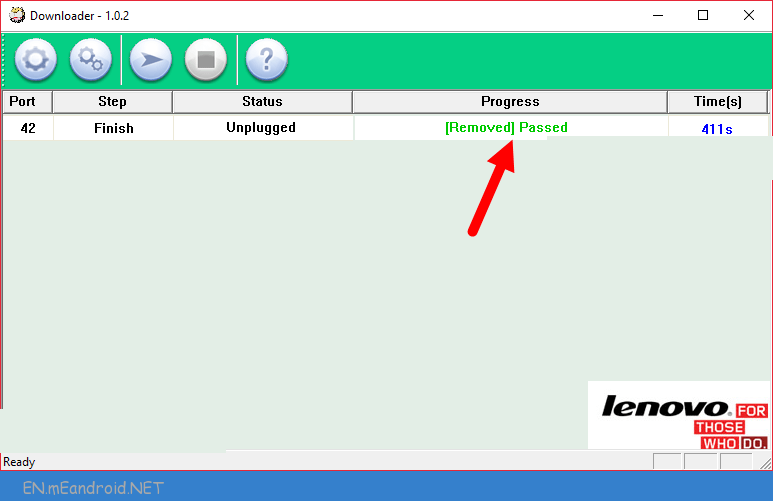
Step 8: Flashing process may take upto 5-10 minutes to complete. And Once flashing process is completed you will be able to see the Green Passed Message.
<figcaption class="wp-caption-text">How to Download and Flash Lenovo A600E Stock Rom (flash file)</figcaption></figure>Step 8: Flashing process may take upto 5-10 minutes to complete. And Once flashing process is completed you will be able to see the Green Passed Message.
thanks to the original uploader