
- Joined
- Jun 27, 2014
- Messages
- 1,315
- Reaction score
- 755
- Points
- 521
- Location
- San Jose Del Monte Bulacan
Vivo V11 official firmware update download
Follow this link to download Vivo V11 Pro official firmware update
DOWNLOAD OPTIONS
File Name: PD1813F_EX_A_1.11.1-update-full_1545097648.zip
Size: 2.66 GB
Build: PD1813F_EX_A_1.11.1
Link: Download
INSTALLATION / UPDATE INSTRUCTIONS
The first step to installing this official firmware update is to erase all data on your phone. It is not compulsory that you do this, but it is necessary and ‘very much recommended‘.
For full screen devices:
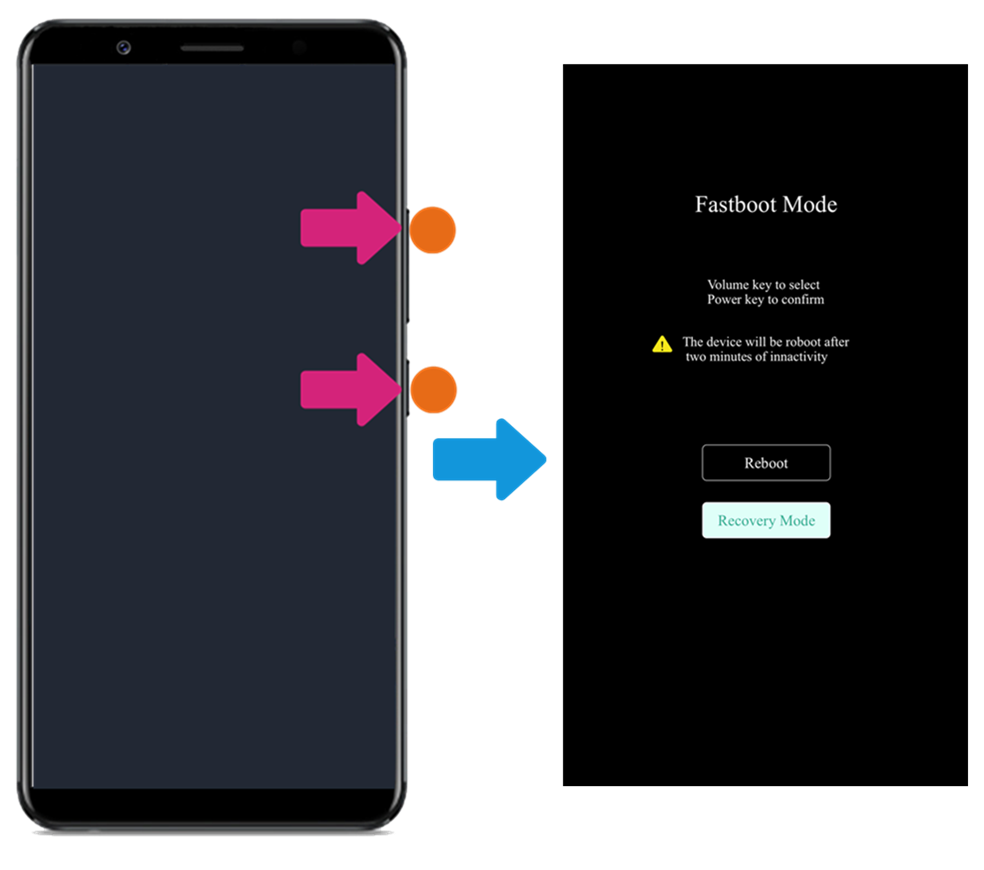 Vivo Fullscreen devices Fastboot, Recovery. Credits- Vivo
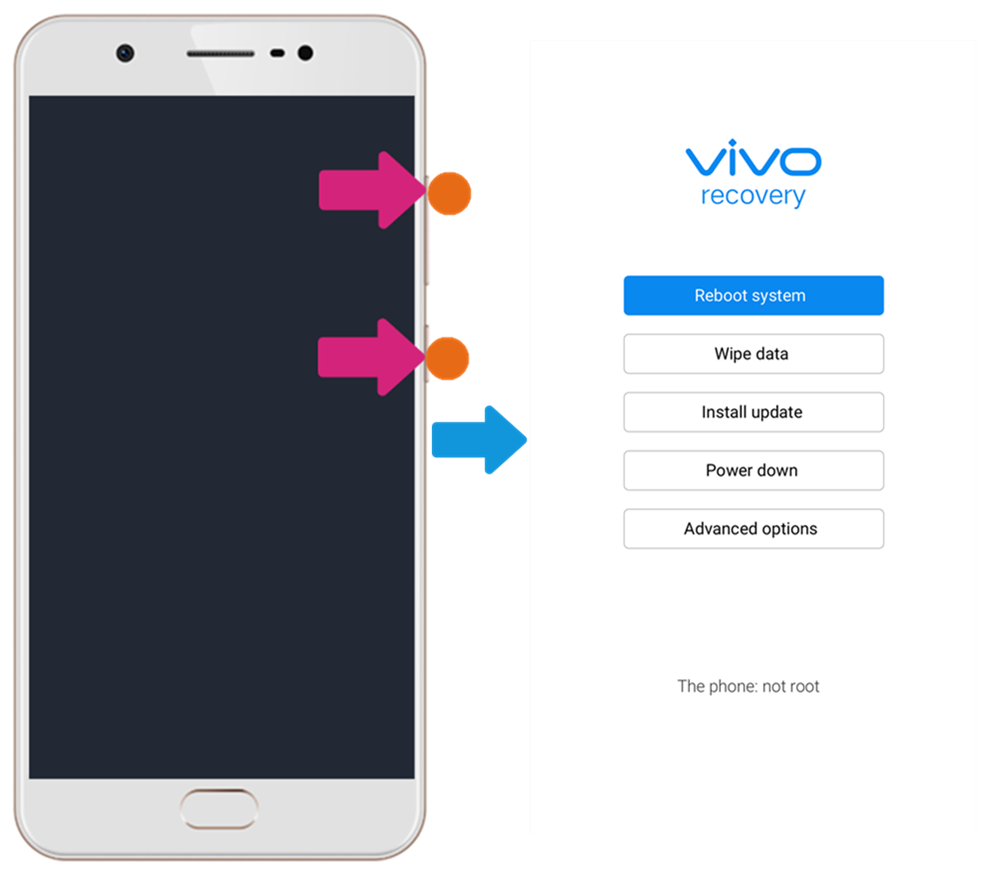
Vivo 16:9 devices Recovery mode. Credits- Vivo
 Vivo stock file manager
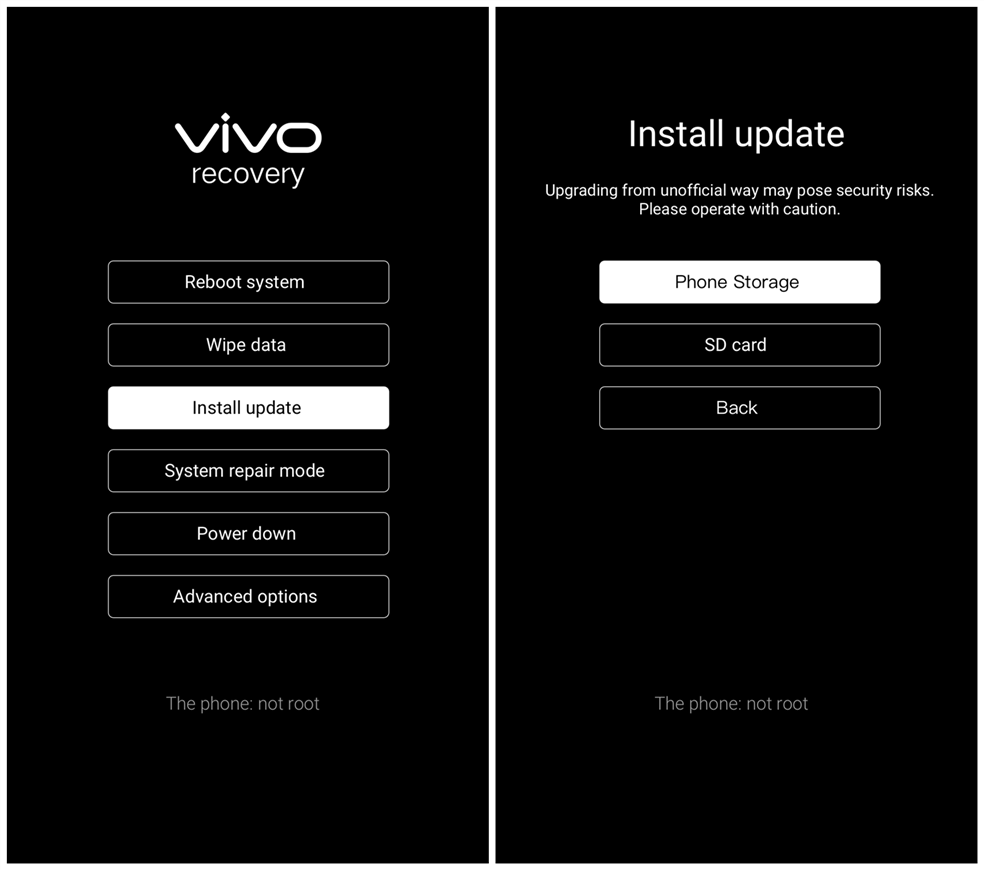 Vivo Stock recovery. Credits-Vivo
Once you complete the above steps, wait patiently for the installation process to finish as it might take a while. First boot after update might take a while, so be patient too.
Follow this link to download Vivo V11 Pro official firmware update
DOWNLOAD OPTIONS
File Name: PD1813F_EX_A_1.11.1-update-full_1545097648.zip
Size: 2.66 GB
Build: PD1813F_EX_A_1.11.1
Link: Download
INSTALLATION / UPDATE INSTRUCTIONS
The first step to installing this official firmware update is to erase all data on your phone. It is not compulsory that you do this, but it is necessary and ‘very much recommended‘.
For full screen devices:
- Wipe Data: Power off your phone, then press and hold Power button and Volume up button simultaneously until Vivo logo appears to enter Fastboot mode. Select Recovery mode by pressing Volume down button and enter it by pressing Power button.
- Touch Wipe data>Wipe data>enter the lock screen password. Then select Reboot system to reboot your phone.
- Wipe Data: Power off your phone, then press and hold Power button and Volume upbutton simultaneously until Vivo logo appears to enter Recovery mode.
Vivo 16:9 devices Recovery mode. Credits- Vivo
- Touch Wipe data>Wipe data>Wipe data. Then select Reboot system to reboot your phone (For Funtouch OS 2.0 and lower version, select Recovery mode by pressing Volume down button, enter it by pressing Power button. Then select wipe data/factory reset>wipe data>wipe data, and then select reboot system now to reboot your phone)
- Now that you have erased (wiped) the data on your phone, reboot normally to system and copy the update file you earlier downloaded to the internal storage. Place in the root, not in any folder. See below:
- Once you have copied the file to the device sdcard, click on (or tap) the file to begin the update process. If you are unable to access or boot your phone (stuck in boot screen, for instance) go to the next step.
- Follow the already outlined steps to enter Recovery mode, then select Install update > Phone Storage or SD card > select the firmware > touch Next to begin installation (For Funtouch OS 2.0 and lower version, select “apply update from internal sdcard (Phone storage)” or “apply update from external sdcard(SD card)” depending on where you copied the file to, then select the firmware to install).
Once you complete the above steps, wait patiently for the installation process to finish as it might take a while. First boot after update might take a while, so be patient too.