
Dell Venue 8 3840 Pattern Lock Remove & Full Flash Done

1) Open Flash Tool “xFSTK-Downloader”

2) Select the second “MRD AO/BO + MOOR AO + CRC” tab as the following:
3) Set GP Flag to “0x80000007” in “Download Options” tab as below:
4) Select Firmware files as the following from SW Image directory:

5) Power off the tablet device (long press power key for more than 15 seconds).
6) Click “Begin Download” in Flash Tool, it will display waiting time is 60 seconds.
7) Long press the volume up button and then plug in the cable.
8) When flash process started, then release the volume up button.
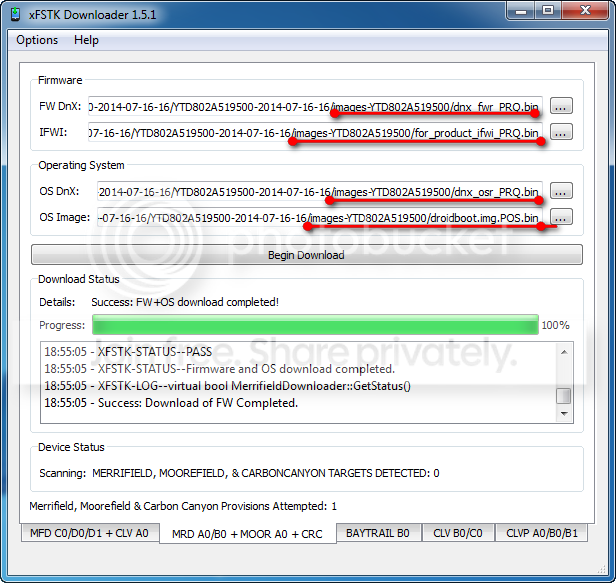
9) When firmware flash is done, Flash Tool will show Success: FW+OS Download Completed!
10) After flashing firmware, the tablet device will switch to fastboot mode automatically as the following:
11) Double click file “P802_flash_device_wifi_only.bat” or “P802_flash_device_lte.bat” in SW
image folder. The following CMD window will show up, and begin to flash OS system image.
Firmware Download Here

1) Open Flash Tool “xFSTK-Downloader”
2) Select the second “MRD AO/BO + MOOR AO + CRC” tab as the following:
3) Set GP Flag to “0x80000007” in “Download Options” tab as below:
4) Select Firmware files as the following from SW Image directory:
5) Power off the tablet device (long press power key for more than 15 seconds).
6) Click “Begin Download” in Flash Tool, it will display waiting time is 60 seconds.
7) Long press the volume up button and then plug in the cable.
8) When flash process started, then release the volume up button.
9) When firmware flash is done, Flash Tool will show Success: FW+OS Download Completed!
10) After flashing firmware, the tablet device will switch to fastboot mode automatically as the following:
11) Double click file “P802_flash_device_wifi_only.bat” or “P802_flash_device_lte.bat” in SW
image folder. The following CMD window will show up, and begin to flash OS system image.
Firmware Download Here