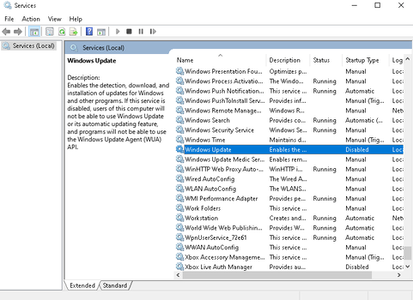
Here, the moral side of the question of whether to turn off automatic updates will not be considered, everyone decides for himself. However, there should still be a possibility of choice, as there are situations when updates do more harm than good. So far, I have not seen the correct ways to disable autoupdate on Windows 10 using standard tools, without banning access to the update service files, so I came up with my own.
It consists of specifying a local non-existent WSUS update server to which the update service will connect unsuccessfully. To configure, you need to start the local group policy editor gpedit.msc and open the following section:
Computer Configuration -> Administrative Templates -> Windows Components -> Windows Update
Further, all settings are indicated here, we need to set three parameters:
Specify intranet Microsoft update service location
We set the status to Enabled, the address of the update service and statistics server we write localhost. With this setting, we tell the system to look for updates not on the Internet, but on the local computer, where they are not.
Do not connect to any Windows Update Internet locations
The state is set to Enabled. With this setting, we prohibit receiving information from the publicly available Windows Update service.
Configure Automatic Updates
The state is set to Disabled. This item is optional, it only disables automatic periodic checks for updates.
So you can enable or disable automatic updating of Windows 10 as needed without additional programs.