How to Remove/Reset Windows 7 Password
=====METHOD 1: Reset Windows 7 Password by Third-party Software=====
Step 1 (Create a Bootable USB Flash Drive)
1. Download Reset Windows Password utility
2 .Extract it using Winrar (ResetWindowsPwd.iso)
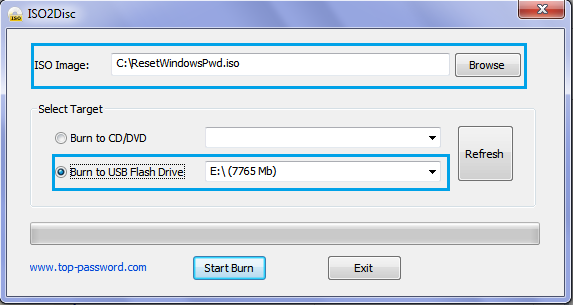
3. Plug a USB flash drive into the computer.
4. Download and Install ISO2Disc software, Run it. software click to download ISO2Disc
5. Locate the ISO file extracted in step2, Choose the USB drive then Click Start Burn.
Step 2 (Resetting Windows Password)
1) Now Plug the USB into the Locked Computer and change boot settings from Bios to USB.
2) After booting from USB, you'll see Reset Windows Password being initialized.

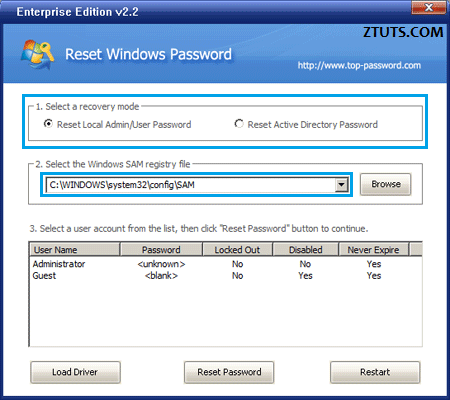
3) Now browse to your SAM registry hive, it's under "C:\Windows\config\SAM"
4) It will lists all user accounts, Select an account and Click RESET to turn Password to blank
5) Done! Now just restart your Computer and boot from Windows Hard Drive (No need to USB) and You'll Notice there's no Password or login prompt.
=====METHOD 2: Use Windows 7 Password Reset Disk=====
1. Once you've typed the wrong password, Windows 7 will show a Reset password link below the login box.
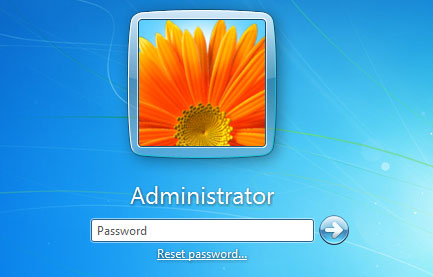
2. Click on the link. Make sure that password reset disk(BURN ResetWindowsPwd.iso INTO CD/DVD) is plugged into the computer at this point.
3. When the Password Reset Wizard appears, click Next to continue.
4. Select the right password reset disk. Click Next.
5. Type in a new password and a hint for the password. Click Next.
6. Click Finish. Now you can log in to your PC with the new password.
=====Method 3: Reset Windows 7 Password from Command Prompt=====
Are you an administrator on the Windows 7 operating system with multiple user accounts? Have you forgotten the password to one of those accounts and you are locked out? Then, provided you can still log on using another administrative account, then you can reset the forgotten password from the command line.
1. Click on the Start button.
2. Click Run and type cmd into the box. Press Enter to open the command prompt.
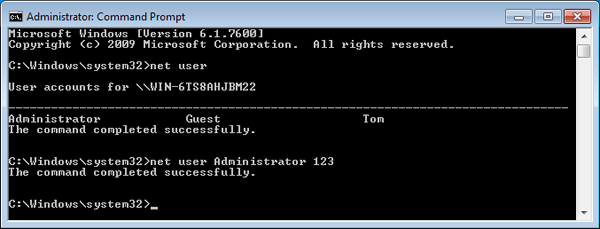
3. Type net user on it and press Enter. All the user accounts will be displayed.
4. Type the following command line and press Enter to reset Windows 7 password. Replace username with your desired account and replace password with your new password.
net user username password
Credits to original uploader
=====METHOD 1: Reset Windows 7 Password by Third-party Software=====
Step 1 (Create a Bootable USB Flash Drive)
1. Download Reset Windows Password utility
2 .Extract it using Winrar (ResetWindowsPwd.iso)
3. Plug a USB flash drive into the computer.
4. Download and Install ISO2Disc software, Run it. software click to download ISO2Disc
5. Locate the ISO file extracted in step2, Choose the USB drive then Click Start Burn.
Step 2 (Resetting Windows Password)
1) Now Plug the USB into the Locked Computer and change boot settings from Bios to USB.
2) After booting from USB, you'll see Reset Windows Password being initialized.
3) Now browse to your SAM registry hive, it's under "C:\Windows\config\SAM"
4) It will lists all user accounts, Select an account and Click RESET to turn Password to blank
5) Done! Now just restart your Computer and boot from Windows Hard Drive (No need to USB) and You'll Notice there's no Password or login prompt.
=====METHOD 2: Use Windows 7 Password Reset Disk=====
1. Once you've typed the wrong password, Windows 7 will show a Reset password link below the login box.
2. Click on the link. Make sure that password reset disk(BURN ResetWindowsPwd.iso INTO CD/DVD) is plugged into the computer at this point.
3. When the Password Reset Wizard appears, click Next to continue.
4. Select the right password reset disk. Click Next.
5. Type in a new password and a hint for the password. Click Next.
6. Click Finish. Now you can log in to your PC with the new password.
=====Method 3: Reset Windows 7 Password from Command Prompt=====
Are you an administrator on the Windows 7 operating system with multiple user accounts? Have you forgotten the password to one of those accounts and you are locked out? Then, provided you can still log on using another administrative account, then you can reset the forgotten password from the command line.
1. Click on the Start button.
2. Click Run and type cmd into the box. Press Enter to open the command prompt.
3. Type net user on it and press Enter. All the user accounts will be displayed.
4. Type the following command line and press Enter to reset Windows 7 password. Replace username with your desired account and replace password with your new password.
net user username password
Credits to original uploader


