
- Joined
- Jun 27, 2014
- Messages
- 1,315
- Reaction score
- 755
- Points
- 521
- Location
- San Jose Del Monte Bulacan
Home
Firmware Flashing
How To Flash FTF Firmware On Sony Xperia Phones
How To Flash FTF Firmware On Sony Xperia Phones
Collins Edim Firmware Flashing, Stock Roms, Xperia
After downloading stock FTF firmware for your Sony Mobile smartphone, follow the simple instructions below to flash the firmware to your device.
If you don’t have the official FTF firmware package for your device yet, follow the link in requirements below to download for your device model.
If you experience any issues using the guide below, do not hesitate to post your problems in comments section, at the end of this post.
Requirements:
Flashing procedure:
Step One: Run the downloaded Flashtool software and complete the installation
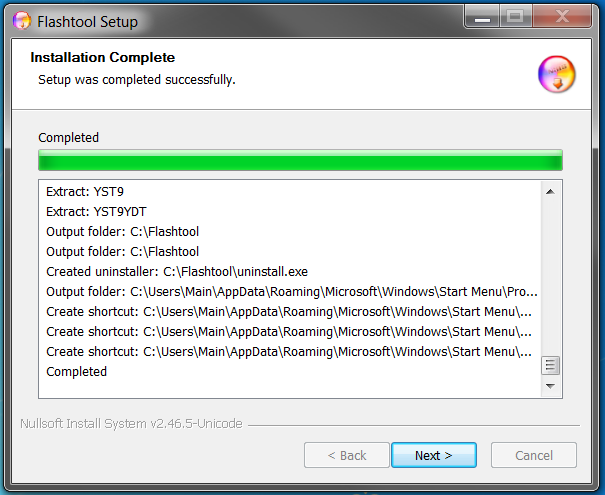
Step Two: Once Flashtool installation is complete, navigate to C:Flashtooldrivers and install flashmode and Xperia drivers
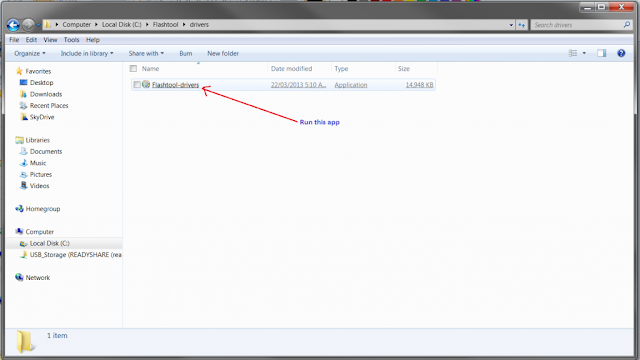
Step Three: Once driver installation is complete, close the wizard. Now, copy the downloaded .ftf firmware to C:Flashtoolfirmwares
Step Four: In C:Flashtool, run Flashtool.exe (32bit) or Flashtool64.exe (64bit)
Step Five: Click on the lightening bolt icon, then select Flashmode
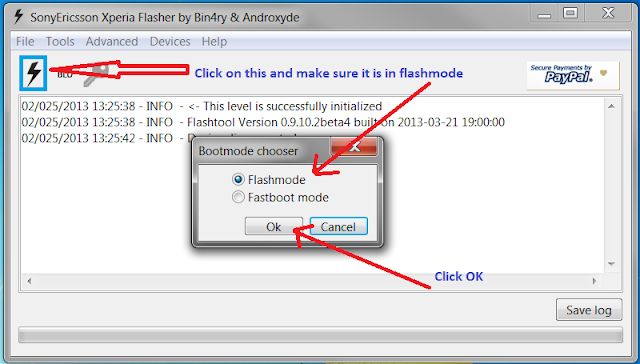
Step Six: From the Firmware Selector popup, select the firmware you downloaded and click Flash
Step Seven: If your Xperia device is connected to the computer alread, disconnect and power off the device. Press and hold flashmode button, then reconnect to PC via USB. (If you don’t know your device flashmode button combo, ask in comments).
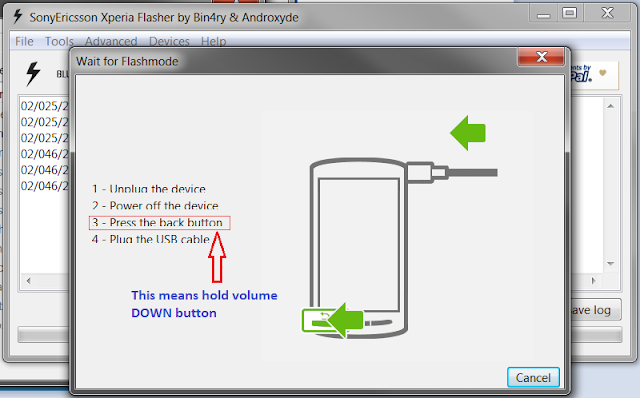
Step Eight: The flashing process should be in progress now. Wait for it to complete.
Step Nine: Disconnect and reboot your Xperia device, if it does not reboot automatically.
That’s all!
Firmware Flashing
How To Flash FTF Firmware On Sony Xperia Phones
How To Flash FTF Firmware On Sony Xperia Phones
Collins Edim Firmware Flashing, Stock Roms, Xperia
After downloading stock FTF firmware for your Sony Mobile smartphone, follow the simple instructions below to flash the firmware to your device.
If you don’t have the official FTF firmware package for your device yet, follow the link in requirements below to download for your device model.
If you experience any issues using the guide below, do not hesitate to post your problems in comments section, at the end of this post.
Requirements:
Flashing procedure:
Step One: Run the downloaded Flashtool software and complete the installation
Step Two: Once Flashtool installation is complete, navigate to C:Flashtooldrivers and install flashmode and Xperia drivers
Step Three: Once driver installation is complete, close the wizard. Now, copy the downloaded .ftf firmware to C:Flashtoolfirmwares
Step Four: In C:Flashtool, run Flashtool.exe (32bit) or Flashtool64.exe (64bit)
Step Five: Click on the lightening bolt icon, then select Flashmode
Step Six: From the Firmware Selector popup, select the firmware you downloaded and click Flash
Step Seven: If your Xperia device is connected to the computer alread, disconnect and power off the device. Press and hold flashmode button, then reconnect to PC via USB. (If you don’t know your device flashmode button combo, ask in comments).
Step Eight: The flashing process should be in progress now. Wait for it to complete.
Step Nine: Disconnect and reboot your Xperia device, if it does not reboot automatically.
That’s all!