
iPhone 6S Clone Stock ROM Firmware
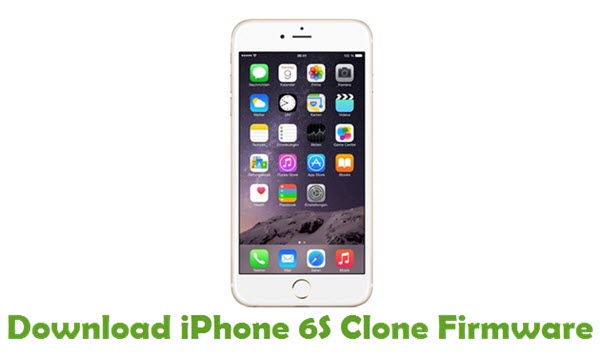
Model Name: iPhone 6S Clone
Stock Android ROM Version: 4.2.2
Firmware File Size: 341 MB
Download Now
How To Flash Stock ROM Firmware On iPhone 6S Clone
Step 1: Download the stock ROM zip file given above and extract it on your computer. You will find SP flash tool and Android scatter file after extracting.
Step 2: Now download iPhone 6S Clone USB driver and install it on your computer. In case if you have already installed USB driver on your computer skip this step.
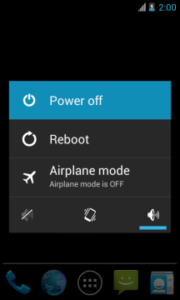
Step 3: Next, switch off your iPhone 6S Clone smartphone and remove the battery (it is removable).
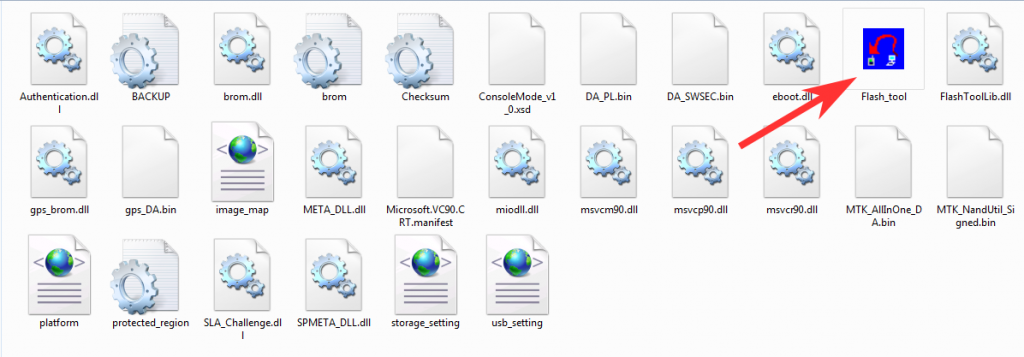
Step 4: Now go to the extracted folder in Step 1 and open up the SP Flash Tool sub-folder. You will find “Flash_tool.exe” file in it. Launch it.
Step 5: Once SP Flash tool is launched, click on “Download” tab.
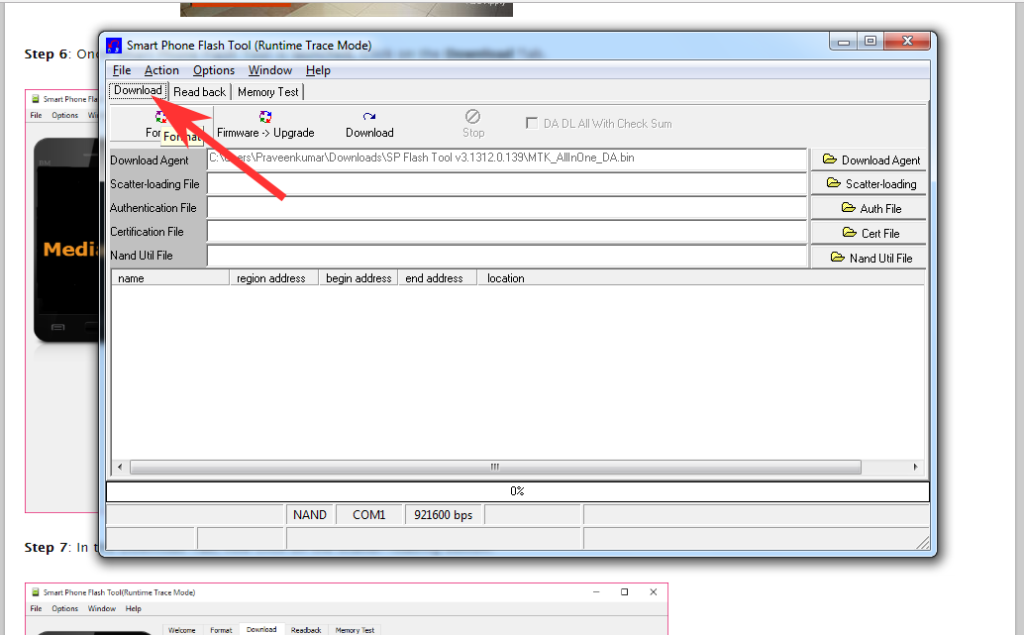
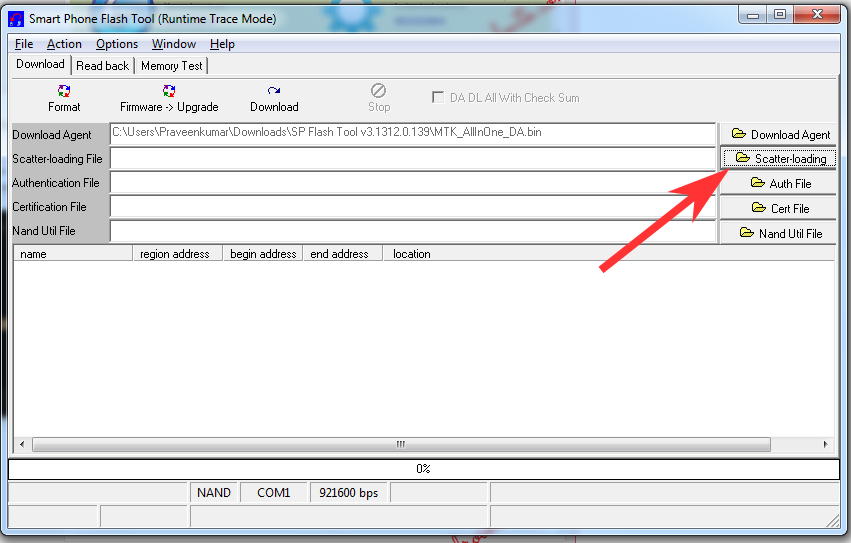
Step 6: Now, click on “scatter-loading” button in the download tab.
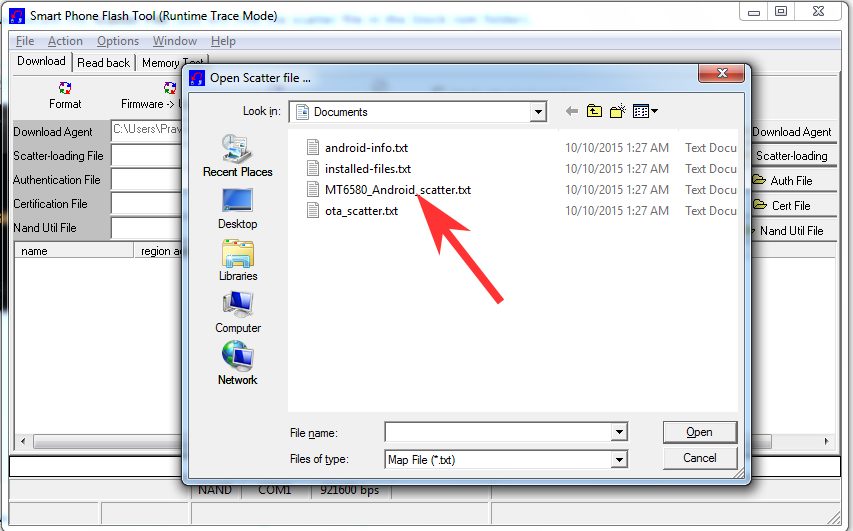
Step 7: Next, click on “Open Scatter File” and select the scatter file from Step 1. For reference see the image given below.
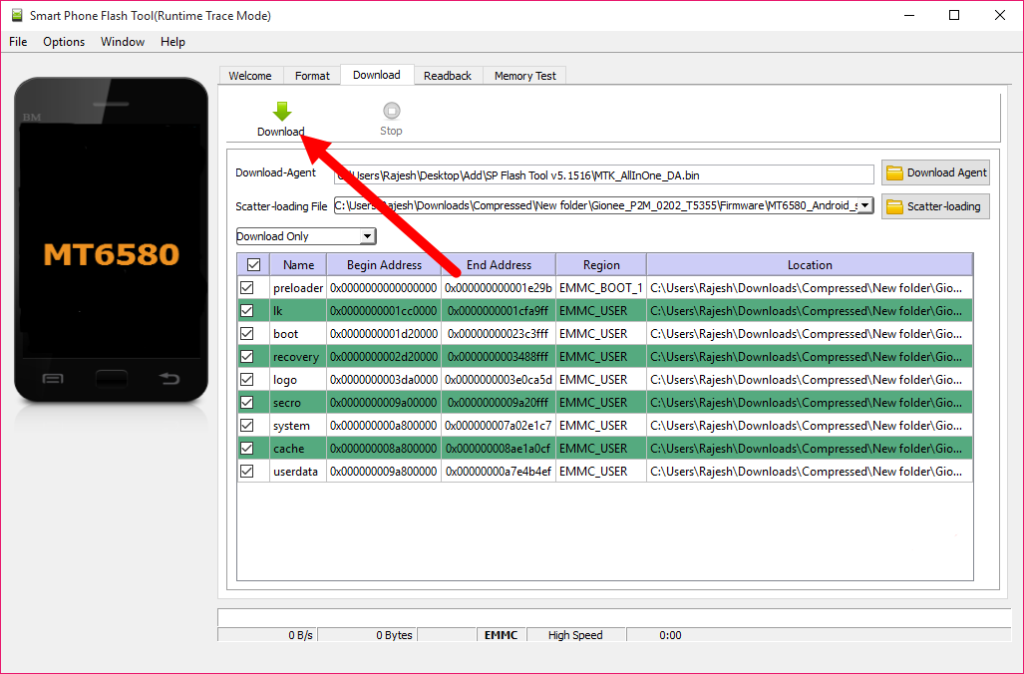
Step 8: Now click on the “Download” button to start the flashing process.
Step 9: Next, connect your iPhone 6S Clone Android device to your computer through original USB cable (without battery – if it is battery removable) and press volume up or volume down button.
Step 10: The flashing process will begin momentarily and it will get completed in a minute or two. Once it is over, you will see the “Download OK” green ring in SP Flash Tool.

Step 11: Now, close SP Flash tool on your computer and unplug your smartphone.
Model Name: iPhone 6S Clone
Stock Android ROM Version: 4.2.2
Firmware File Size: 341 MB
Download Now
How To Flash Stock ROM Firmware On iPhone 6S Clone
Step 1: Download the stock ROM zip file given above and extract it on your computer. You will find SP flash tool and Android scatter file after extracting.
Step 2: Now download iPhone 6S Clone USB driver and install it on your computer. In case if you have already installed USB driver on your computer skip this step.
Step 3: Next, switch off your iPhone 6S Clone smartphone and remove the battery (it is removable).
Step 4: Now go to the extracted folder in Step 1 and open up the SP Flash Tool sub-folder. You will find “Flash_tool.exe” file in it. Launch it.
Step 5: Once SP Flash tool is launched, click on “Download” tab.
Step 6: Now, click on “scatter-loading” button in the download tab.
Step 7: Next, click on “Open Scatter File” and select the scatter file from Step 1. For reference see the image given below.
Step 8: Now click on the “Download” button to start the flashing process.
Step 9: Next, connect your iPhone 6S Clone Android device to your computer through original USB cable (without battery – if it is battery removable) and press volume up or volume down button.
Step 10: The flashing process will begin momentarily and it will get completed in a minute or two. Once it is over, you will see the “Download OK” green ring in SP Flash Tool.
Step 11: Now, close SP Flash tool on your computer and unplug your smartphone.