pwede rin naman via hard reset boot key lang to boss...its an
issue of an
Google Play store lang naman sometines it CRASH...
This is the Methods na pwede natin gawin if WE encountered issue like this po:
Fix “Unfortunately, Google Play Store has stopped” Error in Android?
Method 1: Re-start your device
Sometimes just by restarting your device can solve the issue. So, why not try this once. To restart your device:
- Unlock the screen of the devices.
- Press and hold the “Power” button until a menu appears.
- Select “Power off“.
- Wait for the device to power off.
- Wait 10 seconds, then press and hold the “Power” button to power the device back ON.
- After that, see whether it fixes your issue or not.
Method 2: Clear the Cache and Data

- Go to Setting >> Go to Application Setting (In some devices application setting is named as Apps).
- Go to, All the apps > >Find the Google Play Store >> Clear Cache and Data
- Once you have cleared everything. Next, you need to Force Stop the application.
- Similarly, Find the Google Play Service >> Clear Cache and Data
- Now, Restart your device and see whether your error is fixed or not.
If you are still getting the error pop-up message then go to Method 3.
Method 3: Enable Downloads
- Go to Setting>> Go to Application Setting (In some devices application setting is named as Apps).
- Go to, All the apps > >Find Downloads >> Open it and Enable it.
- Now,Restart your device and you will no longer face the error.
This method has worked most of the time and it should also work for you. Just in case, this doesn’t work then try below methods.
Method 4: Upgrade or Downgrade Google Play Store Updates
Many of the time
outdated version of Google Play Store is found to be the reason behind the errors. So, check whether the update is available or not. If update is available then update the Play Store and see if it fixes the issue.

But, if there is no update available then your Play Store is up to date. So there are possibilities that the updated Google Play Store is causing the error. There are chances that the
updated version of Google play store may have Compatibility Issues. So in this case, you need to
Uninstall Google Play Store updates. Just follow the step to Uninstall Google Play Store update.
- Go to Setting>> Go to Application Setting (In some devices application setting is named as apps).
- Go to, All the apps > >Find the Google Play Store >> Uninstall Updates
- Now Restart your device and try to Open the Google Play Store.
This method should fix your error. If you are still getting the error then follow the next method.
Alternative Methods to Fix the Error:
Method 5: Reset App Preference
- Go to Setting>> Go to Application Setting (In some devices application setting is named as Apps).
- Go to, All the Apps > >Click on Menu Key/button [In some device you can even see three dots on the top right corner of the screen- click on it]
- You will see different option >> Tap on “Reset app preferences”
- A dialogue box will appear >> Read the content and Click on RESET APPS
- Now Restart your device and check if it fixes your error.
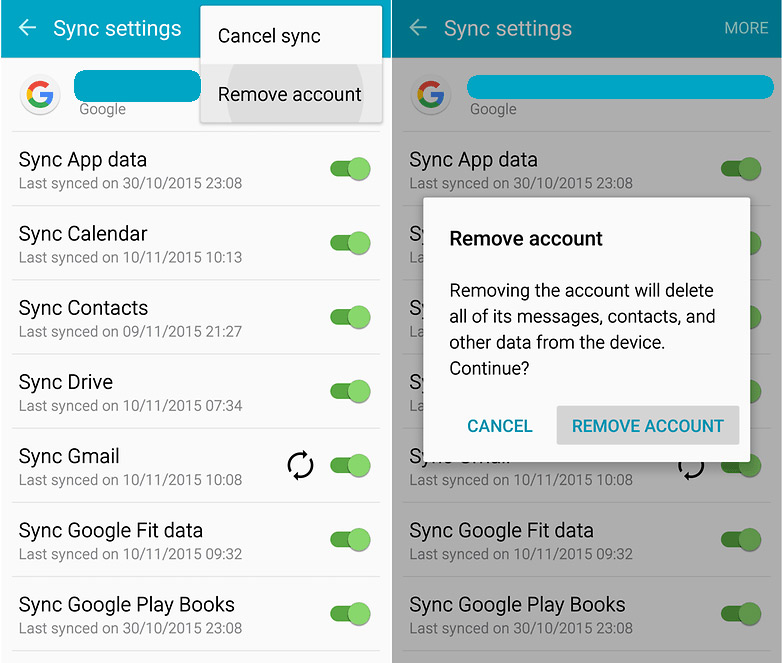
Method 6: Remove and Add Google Account

- Go to Setting >> Accounts >> Google
- Remove all your Google accounts
- Go back to Google play store and Sign–in your account information
- Accept all the Google terms and setup Google settings then Run Google Play Store and see if it fixes your error or not.
If you are able to fix the error then the job is done otherwise head to below method.
Method 7: Factory Reset your Device
If none of the above methods worked for you then you just got one way to solve the issue. Factory Reset your device should fix your issue.
Tested ko po to in
3 times unit na po...
Thank you and keep safe;