
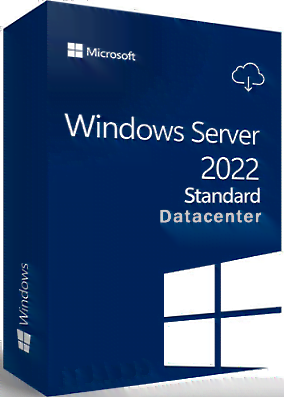
4 In 1 | 35 Languages | Untouched | PreActivated
Windows Server 2022 22H2 Build 225110 AIO x64 Multilingual-35 PreActivated May 2022 [FTUApps]
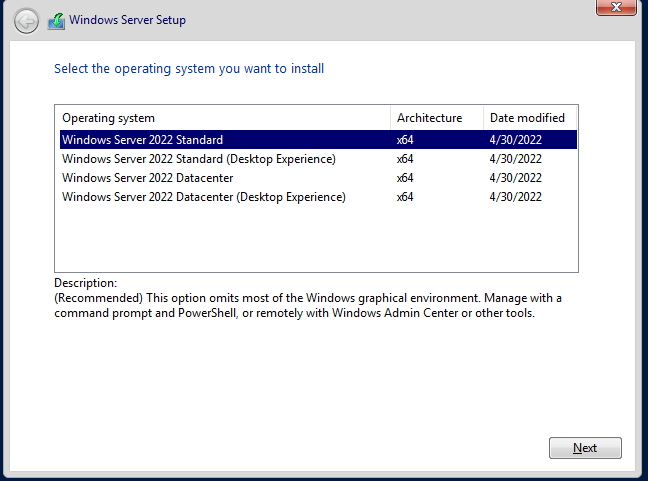
Editions Included:
– Windows Server 2022 Standard x64
– Windows Server 2022 Standard (Desktop Experience) x64
– Windows Server 2022 Datacenter x64
– Windows Server 2022 Datacenter (Desktop Experience) x64
What’s New:
– What’s in this build
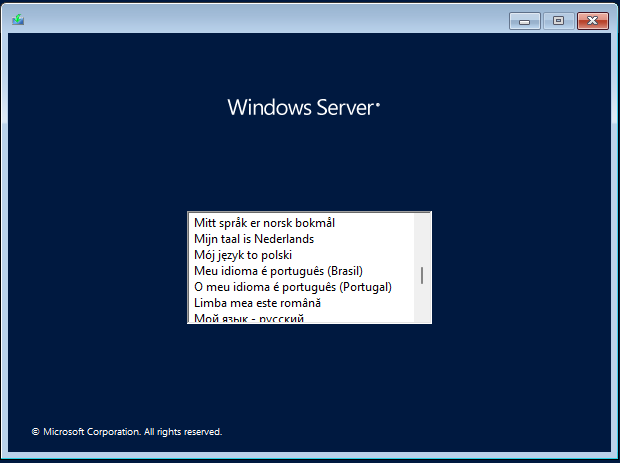
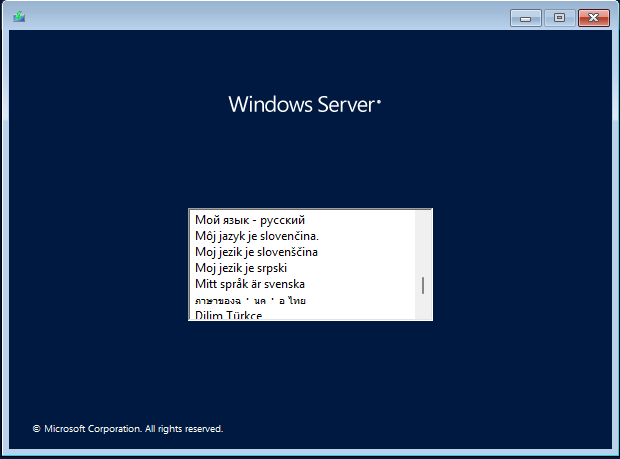
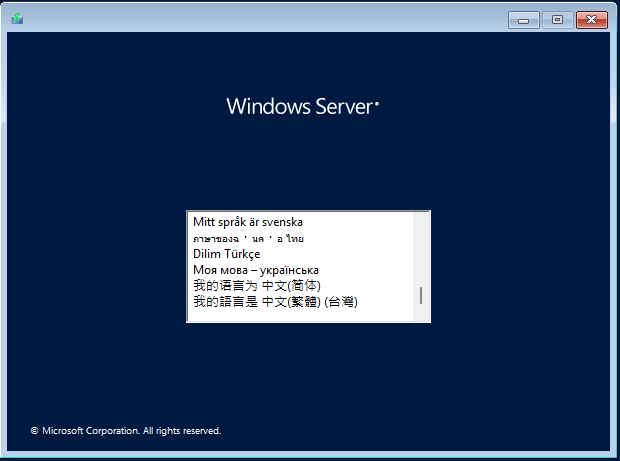
Languages:
– Arabic (Saudi Arabia)
– Bulgarian (Bulgaria)
– Czech (Czech Republic)
– Danish (Denmark)
– German (Germany)
– Greek (Greece)
– English (United States)
– Spanish (Spain)
– Estonian (Estonia)
– Finnish (Finland)
– French (France)
– Hebrew (Israel)
– Croatian (Croatia)
– Hungarian (Hungary)
– Italian (Italy)
– Japanese (Japan)
– Korean (Korea)
– Lithuanian (Lithuania)
– Latvian (Latvia)
– Norwegian (Norway)
– Dutch (Netherlands)
– Polish (Poland)
– Portuguese (Brazil)
– Portuguese (Portugal)
– Romanian (Romania)
– Russian (Russia)
– Slovak (Slovakia)
– Slovenian (Slovenia)
– Serbian (Latin, Serbia)
– Swedish (Sweden)
– Thai (Thailand)
– Turkish (Turkey)
– Ukrainian (Ukraine)
– Chinese (Simplified, China)
– Chinese (Taiwan)
Operating System:
– Processor: 1 gigahertz (GHz) or faster.
– RAM: 2 gigabyte (GB).
– Free space on hard disk: 32 gigabytes (GB).
Install Notes:
– Starting installer in PC (via USB)
– Follow the steps given below:
– Download the Windows ISO image file.
– Install a USB bootable creation software (such as Rufus) on your Windows computer.
– Plug in a USB flash drive (at least 8GB of free space) to your computer.
– Open the USB bootable creation software, and select the ISO image file of Windows, and start the process.
– Plug the bootable USB into a system where you want to install Windows.
– Restart the computer.
– Press the boot device menu key and select USB to boot first.
– Select USB device and start the Windows installer.
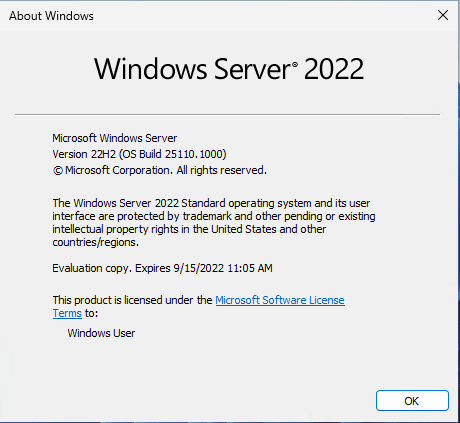
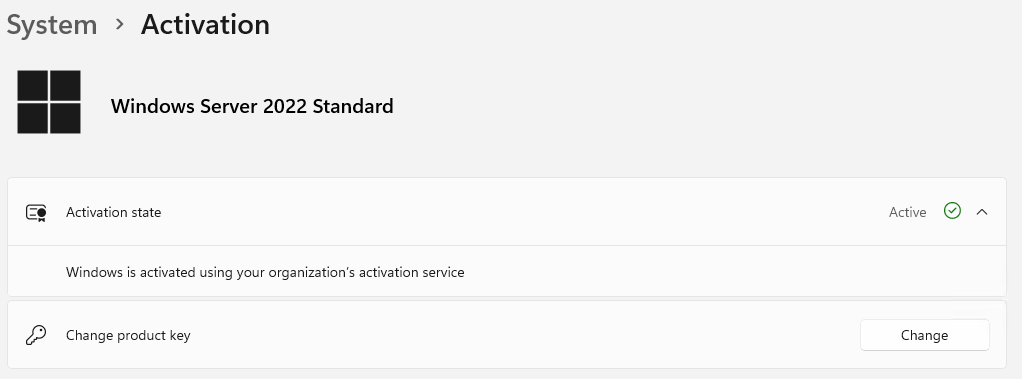
Screenshots:
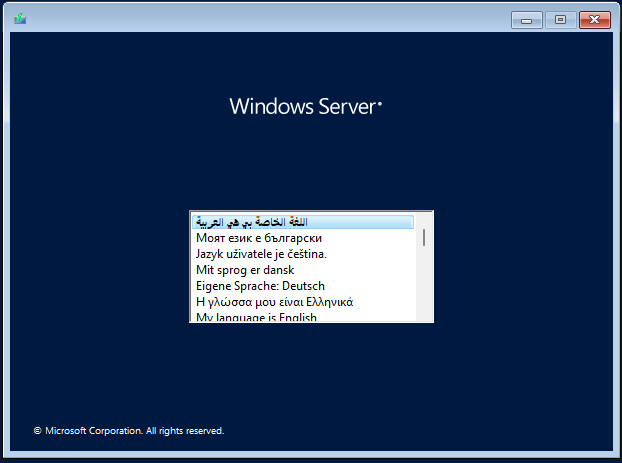
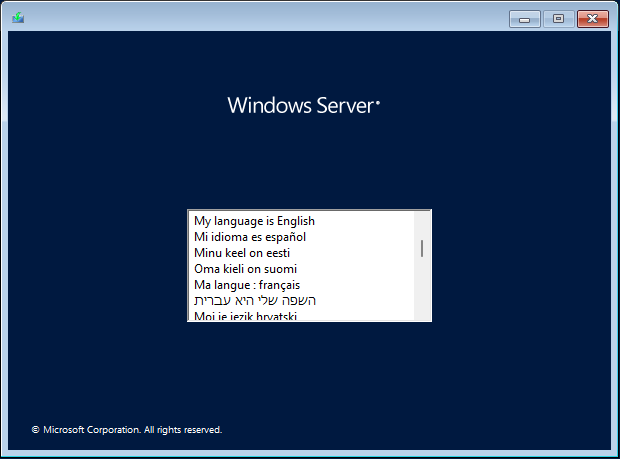
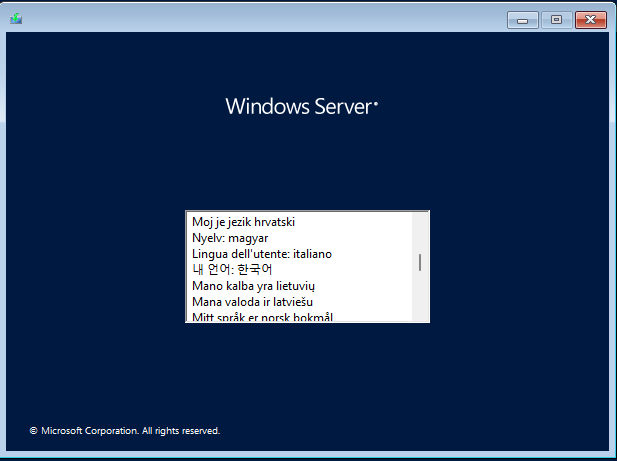
Homepage: https://www.microsoft.com/en-us
https://ftuapps.dev/wp-content/uplo...4-Multilingual-Pre-Activated-May-2022.torrent